Introduction
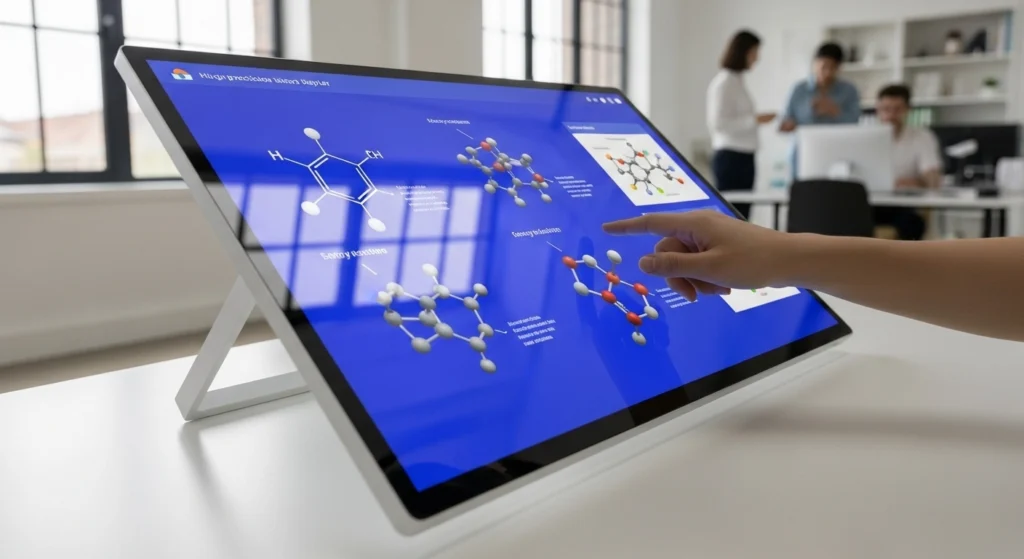
Gone are the days of traditional blackboards and basic whiteboards. Interactive touch screen monitors are transforming classrooms and meeting rooms everywhere.
Think of these screens as giant tablets on your wall. You can write, draw, move images, and work together with others using just your fingers or a special pen. Whether you’re a teacher making lessons more exciting or a business professional improving team meetings, interactive touch screens offer amazing possibilities.
In this guide, we’ll explain everything you need to know in simple terms, how they work, what features matter, and how to choose the right one.
Table of Contents
What is an Interactive Touch Screen Monitor?
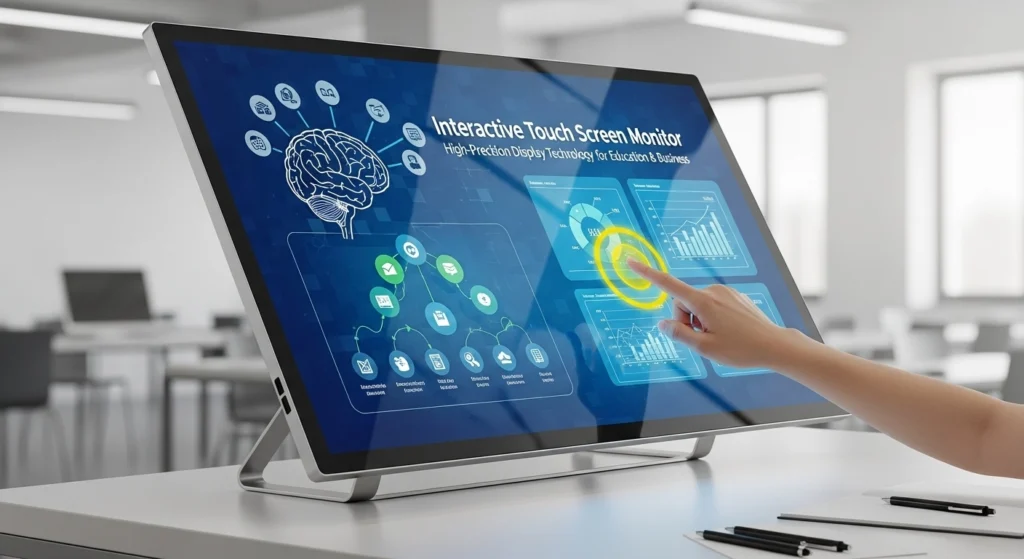
An interactive touch screen monitor is a large display that responds to your touch. Unlike regular monitors where you only look at the screen, these let you control everything directly.
Key Features:
- Write or draw with your finger or stylus
- Multiple people can use it at the same time
- Connects to computers, tablets, and phones wirelessly or with cables
- Works like a giant interactive whiteboard with computer powers
How Touch Technology Works:
Infrared Touch – Uses invisible light beams across the screen. Very accurate and works with gloved hands.
Capacitive Touch – Senses electrical signals from your fingers. Super responsive and supports multiple touches.
Optical Touch – Tiny cameras detect where you’re touching. Perfect for large screens.
What Makes Them High-Precision:
- 4K Resolution: Crystal clear images (best for most uses)
- Fast Response: Reacts in under 6 milliseconds
- Multi-Touch: Handles 10-40+ simultaneous touches
- Palm Rejection: Ignores your hand, only recognizes pen or finger
- Accurate Within 1-2mm: Feels like writing on real paper
Benefits for Education
Makes Learning Fun and Engaging
- Students can touch and interact directly with lessons
- Supports visual, hands-on, and group learning styles
- Students pay more attention and participate more
- Multiple students can work on the screen together
Practical Classroom Uses
- Interactive books and educational games
- Virtual field trips to museums
- Science experiments through videos and simulations
- Math problems with movable objects
- Remote learning with full screen sharing
Helps Teachers Work Smarter
- Create lessons once, reuse forever
- Save and share all notes automatically
- Access thousands of ready-made lessons online
- Connect student devices to the big screen
- No more erasing whiteboards or making copies
Real Results
- Students score 16-20% higher on tests
- 85% more students volunteer to participate
- Students remember 65% more information
- Schools save thousands on printing costs yearly
Benefits for Business
Better Meetings
- Write notes directly on presentations
- Brainstorm together on digital whiteboards
- Video conference with easy screen sharing
- Save all meeting notes automatically
- Wireless sharing from any device
Industry Applications
Healthcare – Patient education, reviewing medical images, telemedicine
Retail – Interactive product catalogs, virtual try-ons, digital menus
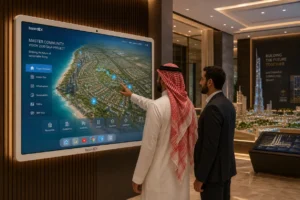
Real Estate – Virtual property tours, interactive floor plans
Manufacturing – Training, safety protocols, production schedules
Productivity Benefits
- Meetings are 20-30% shorter
- Teams make faster, better decisions
- Remote workers participate fully
- Digital signatures and document annotation
Key Features to Look For
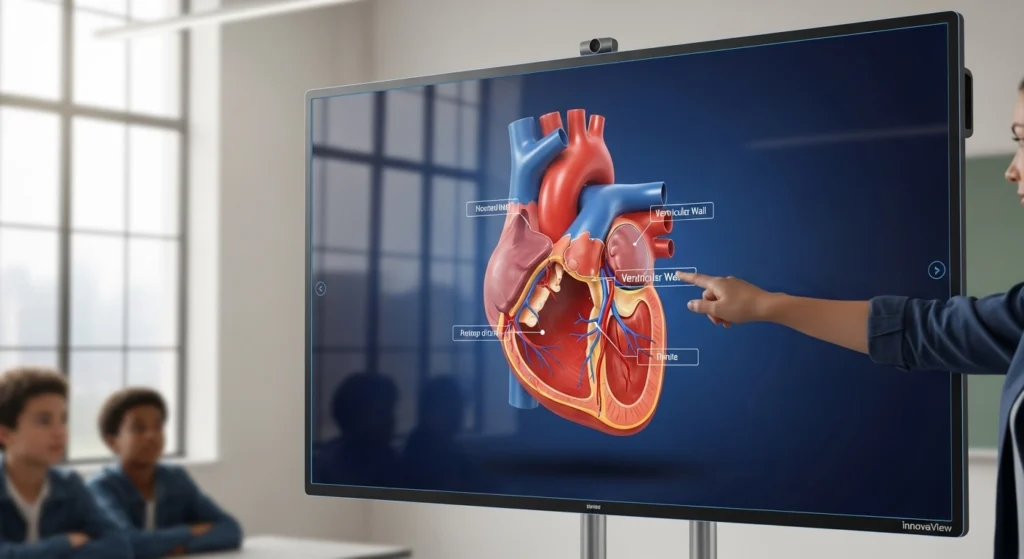
Display Quality
- 4K resolution for sharp images
- 350+ nits brightness for well-lit rooms
- Anti-glare coating for rooms with windows
- Blue light reduction for eye comfort
Touch Performance
- Under 6ms response time
- 20+ touch points for group work
- Stylus with pressure sensitivity
- Accurate within 1-2mm
Connectivity
- Multiple HDMI ports
- USB-C for modern devices
- WiFi and Bluetooth built-in
- Wireless screen sharing (Miracast, AirPlay)
Software
- Works with Microsoft Office and Google Workspace
- Compatible with Zoom, Teams, and Google Meet
- Whiteboarding apps included
- Cloud storage integration
Durability
- Tempered glass protection
- 3-5 year warranty
- 50,000+ hours lifespan (12-15 years)
- Easy maintenance
Top Brands to Consider
Premium Options
- SMART Technologies – Original smart board maker
- Promethean – Great for education
- Microsoft Surface Hub – Perfect for business
- Samsung Flip – Sleek, modern design
- BenQ – Excellent eye-care features
Budget-Friendly
- ViewSonic – Best value for price
- Newline – Good for schools on budget
- MAXHUB – Growing global presence
Most Popular in Schools
- SMART Board – Proven reliability
- Promethean ActivPanel – Great teaching software
- ViewSonic ViewBoard – Best value
- BenQ Board – Eye health features
Installation and Setup
Setup Steps
- Choose language and connect to WiFi
- Calibrate touch accuracy (2-3 minutes)
- Create user accounts
- Connect cloud services
- Install apps you need
- Test with all your devices
Integration
- Connect laptops with HDMI or wirelessly
- Install video conferencing apps
- Link to Google Drive, OneDrive, or Dropbox
- Test everything before first important use
Best Practices
For Teachers
- Use interactive elements every 7-10 minutes
- Create reusable templates for common lessons
- Save all notes for absent students
- Mix text, images, videos, and games
- Let students present from their seats wirelessly
For Business
- Start meetings with whiteboard ready
- Capture action items in special color
- Create templates for common meeting types
- Train all team members on basics
- Email whiteboard photos after meetings
Daily Maintenance
- Wipe screen with microfiber cloth (30 seconds)
- Never use paper towels or window cleaner
- Keep liquids away from screen
- Enable automatic updates
- Recalibrate monthly
Troubleshooting
- Won’t turn on: Check power, try different outlet
- Touch not working: Restart and recalibrate
- Can’t connect: Check cables and input source
- Wireless issues: Confirm same WiFi network
Future Technology Trends
AI Features Coming Soon
- Automatic note-taking and summaries
- Real-time translation
- Smart content suggestions
- Gesture control (no touching needed)
Better Connectivity
- 5G and WiFi 6E for instant sharing
- Zero lag wireless connections
- Connect from anywhere in building
Augmented Reality
- 3D objects you can explore
- Virtual field trips
- Interactive 3D models
- Blend digital and physical learning
More Sustainable
- 50% less power consumption
- Made from recycled materials
- Solar-powered options
- Lower electricity bills
Common Challenges Solved
“It’s Too Complicated”
- Provide simple visual guides
- Start with basic features only
- Offer hands-on training sessions
- Designate helpers in each department
“Too Expensive”
- Consider previous-year models (30-40% cheaper)
- Start with one room, expand later
- Calculate long-term savings
- Look for educational discounts
“What If It Breaks?”
- Choose brands with good warranties
- Train users on proper care
- Have technical support contact ready
- Consider extended warranty
“People Won’t Use It”
- Lead by example
- Share success stories
- Make it easy to start using
- Celebrate teams who use it well
Conclusion
Interactive touch screen monitors are transforming education and business for the better. They make learning more engaging, meetings more productive, and collaboration seamless, whether people are in the same room or connecting from across the world. With innovative solutions from boardEX, you can bring smarter, more interactive experiences to every classroom and workspace.
Key Takeaways:
- Students learn better and remember more
- Meetings are shorter and more effective
- One device replaces multiple tools
- Technology is easy to use with minimal training
- Return on investment within 2 years
- Future-proof for upcoming technology
Whether you’re upgrading a classroom or modernizing your conference room, an interactive touch screen monitor is an investment that pays off in engagement, productivity, and results.
The future of teaching and collaborating is interactive, visual, and engaging. Don’t get left behind with outdated technology!
Frequently Asked Questions
1. What is an interactive touch screen?
A screen you can control by touching with your finger or stylus, without a mouse or keyboard.
2. What technology is used in touch screens?
Common types include capacitive, resistive, infrared, and optical touch technology.
3. What are smart interactive displays?
Advanced touch screens with software and tools for teaching, collaboration, and digital learning.