Table of Contents
Quick answer: A good 30-day onboarding plan starts with one detailed, hands-on training session. Because every feature is explained in simple steps and practised on the panel itself, most teachers understand the core concepts in that single session. The rest of the month turns those skills into a daily habit, with light support from panel champions and the boardEX team.
This guide shows principals and coordinators how our training works and how to prepare for it.
Why one session is enough for most teachers
Teachers do not need technical skills to use an interactive panel. If they can use a smartphone or tablet, they already understand most of what the panel does. What they need is confidence, and our training is built for that:
- It is hands-on from the first minute. Teachers work on the panel, not watch slides about it. Small groups mean everyone gets time at the screen.
- It starts with what teachers already do. Writing, erasing, showing a file, and saving the board come first. New features are added on top of familiar habits.
- Each feature is explained in plain steps. We show it, the teacher repeats it, and we move on only when it works.
- It covers what goes wrong. Teachers practise fixing common problems, so a small fault in class does not make them give up on the panel.
- It is delivered in Arabic and English, so teachers learn in the language they are most comfortable with.
Before the session: get the panels ready
In the week after installation, ask your IT team or coordinator to check:
- Touch works in all four corners and along the bottom edge, where younger students write.
- Pens are counted and kept in a fixed place at each panel.
- Panels are connected to the school network, which wireless sharing, cloud saving, and AI tools need.
- Teacher laptops have been tested with K Share wireless sharing.
- AI and cloud accounts are ready for each teacher. The panel software includes 15 GB of cloud storage for saving lessons.
- Panels are enrolled in DMS for central management.
- Arabic and English keyboards are enabled.
- The support route Raise a Ticket link and phone number is posted beside every panel.
What teachers learn in the session
- Using the panel as your board. Switching on, the home screen, the whiteboard, pen colours, the eraser, the Endless Canvas, zooming and saving. We point out that the board auto-saves every minute, because fear of losing work is a common reason teachers avoid writing on the panel.
- Bringing in your own material. Opening files from USB or cloud storage, sharing a laptop screen through K-Share, placing a document beside the whiteboard with the Screen Splitter, and using Intelligent Search to find a picture or video during a lesson. Teachers practise with a lesson file they already use.
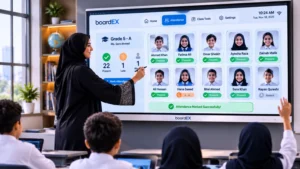
- Getting students to the panel. How two students can write at once with the dual-tip pen, and simple turn rules that keep the rest of the class busy. Teachers then try one tool that suits their subject:
- Mathematics: handwritten equations solved step by step on screen.
- Science and chemistry: Virtual 3D Labs and chemical equation solving.
- Arabic and English: text recognition, turning handwriting into editable text.
- Social studies: mind maps built from student ideas.
- All subjects: AI lesson planning and instant quiz generation for a quick exit quiz.
For more on the planning side, see our AI lesson planning guide. The full feature list is on the boardEX intelligent classroom tools page.
Quick fixes for common faults
We leave a version of this on a card beside each panel.
| What the teacher sees | First thing to check | If that does not fix it |
| Pen or finger does not write correctly | Remove anything touching the frame edge; check the correct input is selected | Restart the panel, then raise a ticket |
| No sound from a video | Panel volume and mute, then the laptop’s sound output | Call IT or raise a ticket |
| Laptop will not share wirelessly | Laptop and panel on the same network; K-Share open on both | Use a cable connection |
| Panel stops responding | Restart from the power button; AutoSave limits any loss to about a minute | Raise a ticket if it happens again |
| Internet goes down | Keep teaching on the whiteboard and saved files | Online tools return when the connection does |
Short sessions for other roles
Alongside the teacher session, we run brief sessions for:
- IT staff: device management, updates, network set up, Android and OPS differences, and first-line fault checks. This is best done at handover with the boardEX engineer.
- Panel champions: one teacher per subject group or floor who becomes the first point of help for colleagues. Choose teachers others respect, not only the most technical.
- School leaders: wireless sharing and video calls on Zoom, Teams or Google Meet for meeting rooms
The rest of the month: turning skills into habit
The session gives teachers the skills. The remaining weeks of the month turn them into habit. A few light steps help:
- Ask teachers to teach at least one lesson a day on the panel in the first week.
- Keep a quick-start card and the fault card beside each panel.
- Make the champion the first contact for “how do I…” questions.
- New or substitute teachers get the quick start card and a short walkthrough with a champion.
To check progress, a coordinator can visit a lesson a week or two later and see whether the board is ready on time, the teacher uses their own files, students come to the panel, and small faults do not stop the class.
What boardEX provides
Installation and teacher training are included with boardEX interactive flat panels, which carry a 3-year warranty. Our team offers training for classrooms and meeting rooms, and after-sales support through the Raise a Ticket page, phone, and WhatsApp. Session format and group sizes are agreed with your school during the project.
Planning a rollout? Request a quote, message us on WhatsApp or call +966 55 430 0901.
Frequently asked questions
How long does it take to train teachers on an interactive panel?
Most teachers understand the core features in a single hands-on session. Daily use in the following days builds confidence, and champions and our support team answer any questions after that.
Do teachers need IT skills?
No. If a teacher can use a smartphone, they can learn the panel. Network, accounts, and updates are handled by IT staff, who get their own session.
Can teachers use the panel without internet?
Yes, for writing on the whiteboard and opening saved files. Cloud saving, Intelligent Search, and AI tools need a connection.
Is training different for Android and OPS panels?
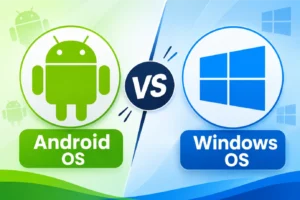
The basics are the same. With the optional OPS module, the panel runs Windows 11, so teachers can also use familiar Windows software. We train each teacher on the setup in their classroom.