A good hybrid classroom setup has three parts that work as one system: an interactive panel the whole class can see, a PTZ camera that shows online students the teacher and the board, and a stand that positions both correctly. When you plan these three together, the room works well for both groups from the first lesson.
This guide is for universities and training centres in Saudi Arabia that teach students in the room and online at the same time.
Table of Contents
What is a hybrid classroom?
A hybrid classroom is a room where one teacher teaches two groups at once. Some students sit in the room. Others join online. Both groups should see the same board, hear the teacher clearly, and be able to ask questions.
Most problems start when the parts are bought separately. The camera can’t see the board. The screen is too small for the back row. Or the panel is fixed to a wall the camera can’t face. Planning the kit as one system avoids these problems.
The three parts of a hybrid classroom kit
Interactive flat panel: the shared board
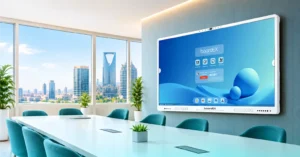
The panel is the centre of the room. Everything the teacher writes, shows, or opens appears here for students in the room and online.
boardEX interactive flat panels come in 65″, 75″, 86″ and 98″ sizes. They run Android, with an optional OPS module for teachers who need Windows 11 software. Teachers can share their laptop screen wirelessly with K Share and use built-in classroom tools such as AI lesson planning, quiz generation, and handwriting-to-text.
One detail matters for hybrid teaching. The panels do not have a built-in camera or microphone. These are added separately, which is why the camera is part of the kit from the start.
PTZ camera: what online students see
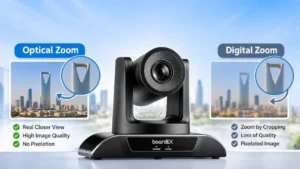
PTZ means pan, tilt, and zoom. The camera can turn left and right, move up and down, and zoom in on the board or the teacher.
The boardEX Vision Pro PTZ camera series has three models:
- Vision Pro 10: 10x optical zoom.
- Vision Pro 20: 20x optical zoom with AI tracking.
- Vision Pro 30: 30x optical zoom with AI tracking.
All three send Full HD 1080p video. They connect over USB and work with Zoom, Microsoft Teams, and Google Meet without extra drivers.
If your teachers walk around while they teach, choose a model with AI tracking. The camera follows the teacher, so nobody needs to control it during the lesson. Each camera can also save up to 64 preset positions, such as “board”, teacher’s desk, or whole class. The teacher can switch views with one press.
Trolley stand: one setup that can move
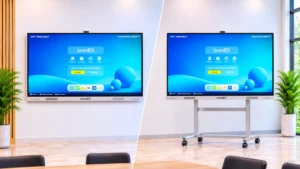
The interactive panel trolley stand holds the panel on four lockable 360° wheels. It has up to 15 inches of height adjustment, an adjustable screen angle, an anti-tip design, and built-in cable management. It supports VESA mounts from 200 × 200 mm to 1000 × 600 mm and loads up to 100 kg.
Trolley or wall mount? Both work. The right choice depends on how you use the room.
A wall mount suits a dedicated hybrid lecture room that is used every day. A trolley is the better choice when one kit serves several rooms, when your training centre rearranges rooms often, or when you want to test hybrid teaching in a few rooms before equipping the whole building.
How to match the kit to your room
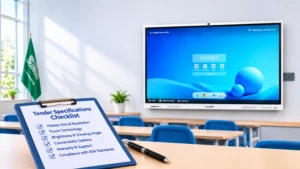
Room size decides two things: how big the panel should be and how much zoom the camera needs. Use this as a starting point. The final choice should follow a site visit, because room shape, lighting, and seating also matter.
| Room type | Suggested panel size | Suggested camera |
| Small training room up to about 20 seats | 65″ or 75″ | Vision Pro 10 |
| Standard classroom about 20 to 40 seats | 75″ or 86″ | Vision Pro 20 |
| Large lecture hall, 40+ seats | 86″ or 98″ | Vision Pro 30 |
Don’t forget audio
Online students can accept average video. They can’t follow a lesson with bad sound.
The panel has no built-in microphone, so plan audio as its own part of the kit:
- A wireless lapel microphone so the teacher can move and still be heard.
- A room microphone so online students hear questions from the room.
- Speakers so the room can hear online students clearly.
Ask the boardEX team which audio options fit your room.
Where to place everything
Good placement solves most hybrid problems before they start.
Mount the camera just above or below the panel, facing the teaching area. Keep the panel where the camera sees it straight on, so online students can read the writing. Avoid windows behind the teacher, because bright light makes the teacher’s face look dark on camera.
Use a wired network connection for the teaching device where you can. Wi-Fi drops are one of the most common reasons a video call breaks. If you use a trolley, tie the cables along the stand and lock the wheels before the lesson starts.
Quick checklist before the first lesson
- Turn on the panel and connect the teacher’s device with K-Share.
- Connect the camera by USB and select it in Zoom, Teams, or Meet.
- Save your camera presets: board, teacher, and class.
- Test the microphone from the back of the room and from the online side.
- Join the call from a phone as a test student and check what they see and hear.
- Lock the trolley wheels.
Teacher training: clear and simple, in one session
New technology only helps if teachers feel confident using it. boardEX provides detailed training with every installation. The training is explained in simple, practical steps, so most teachers understand the main concepts in a single session.
The session covers everyday tasks: starting a lesson, sharing a screen, joining a video call, switching camera views, and writing and saving notes on the panel. Teachers practise on the same equipment they will use in class.
Start small, then expand
You don’t have to equip every room at once. Many institutions start with one or two rooms for a term. They collect teacher feedback, adjust the setup, and then roll it out to more rooms. A trolley-based kit makes this easy, because you can move the same kit between rooms while you test.
Frequently asked questions
What equipment do I need for a hybrid classroom?
An interactive panel, a PTZ camera, microphones and speakers, a stable internet connection, and a video platform such as Zoom, Teams or Google Meet.
Do boardEX interactive panels have a built-in camera?
No. The camera and microphone are optional add-ons. A Vision Pro PTZ camera gives online students a clear view of the teacher and the board.
Which PTZ camera is best for a university lecture hall?
For large halls, the Vision Pro 30 offers 30x optical zoom and AI tracking. For standard classrooms, the Vision Pro 20 is usually enough.
Does the Vision Pro camera work with Zoom and Microsoft Teams?
Yes. It connects over USB and works with Zoom, Microsoft Teams, and Google Meet without extra drivers.
How long does teacher training take?
boardEX training is detailed but simple. Most teachers understand the main concepts in a single session.
Plan your hybrid classroom with boardEX
Planning hybrid rooms for your university or training centre? The boardEX team can help you choose the right panel, camera, and stand for each room. Request a quote.