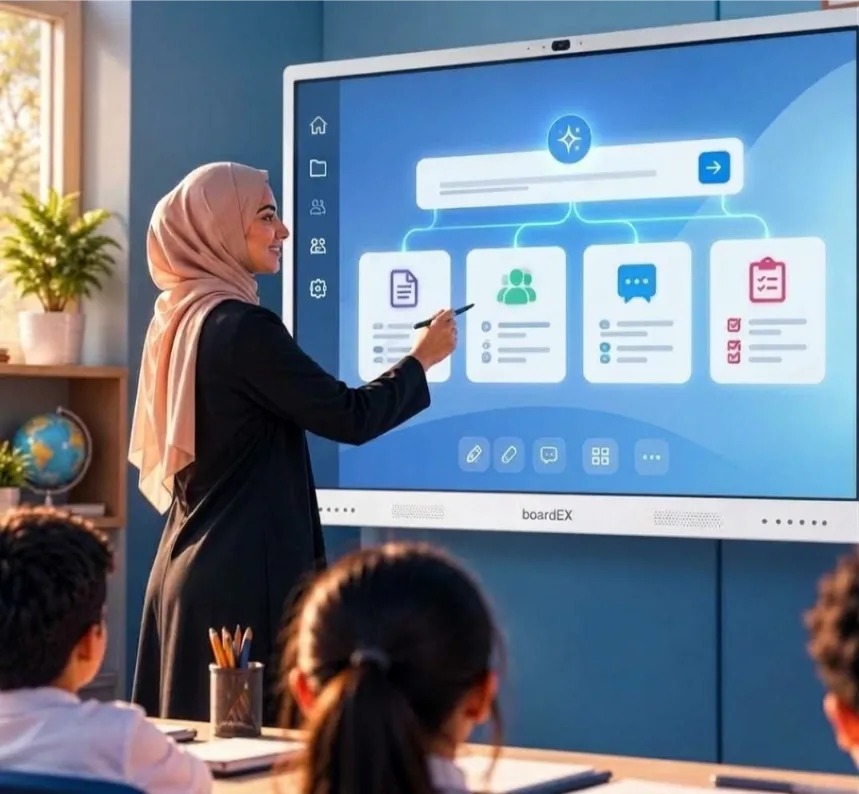
To run an AI interactive lesson on a boardEX Smart Board, write your topic on the panel, select it, tap the AI option, and generate notes in Whiteboard or Blackboard mode. Then tap the AI option again, open Teach It, set the duration, language, and teaching style, choose Interactive Mode, and tap Generate.
That is six steps and takes a few minutes. Below, we run them with a real Grade 5 science topic, the water cycle, and cover what to prepare before the bell, how to keep students involved while the AI session runs, and what to do once it ends.
What Teach It does on the panel
Teach It is one of the AI tools built into the boardEX interactive flat panel. It turns a topic you write on the screen into an interactive teacher-student session, with explanations, notes, text, and visuals generated on the panel.
It helps to know where it sits next to the other AI tools, because teachers often mix them up:
| Tool | Use it when | What you get |
| AI Lesson Plan Generator | You are planning, before class | A structured lesson plan: objectives, overview, media, mind map, assessment tasks |
| Teach It | You are delivering, in front of the class | A live, interactive session on the topic |
| Quiz Generation | You want to check understanding | Multiple choice, short answer, true/false and fill-in-the-blank questions built from your topic |
| Mind Map Generation | You want a one-screen summary | A three-level, colour-coded mind map you can export |
The full list of AI tools, including Virtual Labs, Maths and Chemistry Equation Recognition and AI Attendance, is on the interactive flat panel features page.
One point to be clear on: Teach It supports your teaching. It does not replace your judgement about what is accurate and suitable for your curriculum. Read through what it generates before you present it as fact.
Before class: a 10-minute prep checklist
Most Teach It problems we see come from rushed setup, not from the tool. Run through this once before the lesson:
Check the software version. Teach It is a new feature, so make sure the panel has the latest update. [To confirm: which models and firmware versions include Teach It]Decide the exact topic wording. “Water cycle” is broad. “The water cycle: evaporation, condensation and precipitation” gives the AI a clearer scope and you a more focused lesson.Pick your duration based on your period, leaving time for questions and a quiz at the end.Pick the language. If you teach in Arabic, decide that now so you are not switching mid-lesson.Have the stylus ready and test that handwriting is picked up cleanly at the top of the screen, where you will write the topic.
The example lesson
We will use this lesson throughout the walkthrough:
| Item | Example |
| Subject | Science |
| Class | Grade 5 |
| Topic written on the panel | The water cycle: evaporation, condensation, precipitation |
| Period length | 40 minutes (adjust to your school timetable) |
| Language | English (Arabic works the same way) |
| Goal | Students can name the three stages and explain what happens to water in each one |
Rough timing for the 40 minutes:
| Minutes | Activity |
| 0–5 | Write the topic, generate notes (Steps 1–3) |
| 5–8 | Set up and generate Teach It (Steps 4–6) |
| 8–30 | Run the interactive session |
| 30–37 | Quick quiz generated from the same topic |
| 37–40 | Recap with the mind map, set homework |
Step-by-step: running Teach It
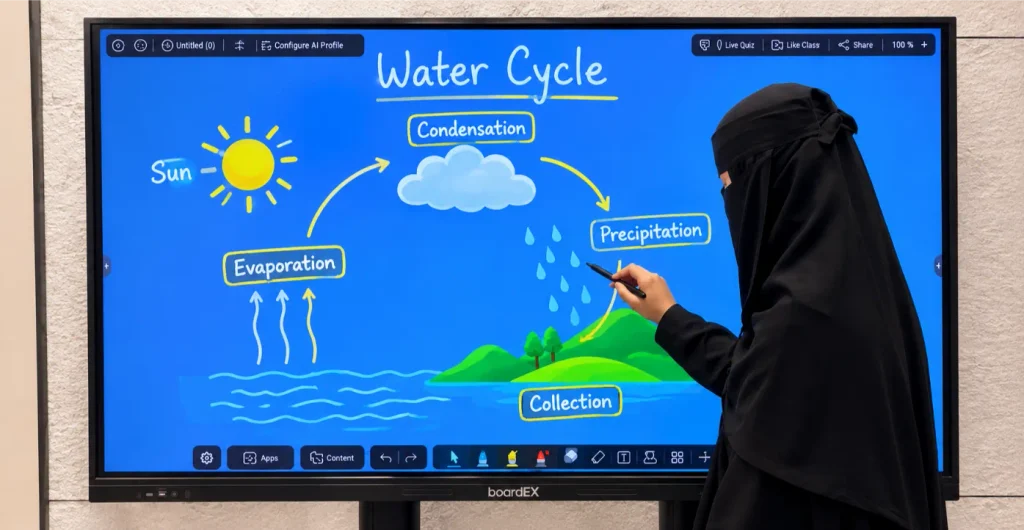
Step 1: Write the topic on the panel
Open the whiteboard and write the topic clearly with the stylus or your finger: The water cycle: evaporation, condensation, precipitation. Print the letters rather than joining them; it makes recognition more reliable.
Step 2: Select the topic and tap the AI option
Use the selection tool to draw around the text you just wrote. When it is selected, tap the AI option in the menu that appears.
Step 3: Choose Whiteboard or Blackboard mode
Pick Whiteboard (light background) or Blackboard (dark background). The panel then generates explanations, notes, text, and visuals for the topic.
Which to choose: Blackboard mode can be easier to read in a bright classroom with sunlight on the screen, while Whiteboard mode suits printing and sharing notes. Try both once and see what your students read best from the back row.
Take a minute here to scan the generated notes. If something is off, such as a level that’s too advanced for Grade 5, fix it now instead of in front of the class.
Step 4: Tap the AI option again and select Teach It
With the topic still selected, tap AI again and choose Teach It from the list.
Step 5: Set duration, language and teaching style
Three settings shape the session:
- Duration: match it to the teaching block, not the whole period. In our example, we set it to around 20 minutes and kept the rest for the quiz and recap.
Language: English or Arabic for most Saudi classrooms.Teaching style: choose the one that fits your class.
Step 6: Select Interactive Mode and tap Generate
Choose Interactive Mode, then tap Generate. The session is built from your topic and settings, and you are ready to teach.
Keeping students involved while the session runs
The word “interactive” only matters if students do something. A few habits that work well with the water cycle lesson:
Stop at each stage. After evaporation, pause and ask a student to come up and draw an arrow showing where the water goes next. Then continue to condensation.
Ask for local examples. Saudi students can connect evaporation to things they see every day: a wet floor drying fast in summer, or condensation on a cold water bottle taken out of the fridge. Ask for their examples before the screen gives one.
Let students write on the panel. The panel is multi-touch, so two students can label parts of the diagram at once. It keeps the rest of the class watching for mistakes.
Stay in charge of pace. If the class is stuck on condensation, stay there. Finishing the generated session on time matters less than students’ understanding of it.
After the session: quiz, mind map, follow-up
You have the topic on the panel already, so the follow-up takes little extra effort:
Quick check. Use Quiz Generation on the same topic. For Grade 5, true/false and fill-in-the-blank questions work well in 5–7 minutes: “Water vapour turns back into liquid during ______.”Recap. Generate a mind map of the water cycle and leave it on screen while you summarise. It is exportable, so you can share it with students. [to confirm: export formats and sharing options]Save the session. [to confirm: whether Teach It sessions can be saved and reopened for another class section]Plan next lesson. If you want a full plan for the next topic, such as “Clouds and weather”, the AI Lesson Plan Generator takes the topic, class level and language and builds it for you.
Common problems and quick fixes
| Problem | Likely cause | Fix |
| The AI picks up the wrong words | Joined or rushed handwriting | Rewrite the topic in clear print, or type it |
| Content is too advanced for the class | Topic is too broad, or style does not match the level | Narrow the topic wording; try a different teaching style |
| Session is in the wrong language | Language not set in Step 5 | Go back to the Teach It settings and change it before generating |
| Session runs longer than planned | Duration set to the full period | Set duration to the teaching block only and keep time for the quiz |
| A fact on screen looks wrong | AI output not reviewed | Correct it on the panel and tell students; review notes in Step 3 next time |
| Teach It option is missing | Older software or model | Update the panel or contact boardEX support |
For anything that does not fix itself, the boardEX team handles it through Support or Raise a Ticket.
Frequently asked questions
Do I need training to use Teach It?
If you can write on the panel and use the selection tool, you can run Teach It. Most teachers are comfortable after one practice run with a topic they know well. boardEX includes user training with installation.
Is Teach It the same as the AI Lesson Plan Generator?
No. The Lesson Plan Generator is for planning: it produces a structured plan you review before class. Teach It is for delivery: it runs an interactive session on the panel during the lesson.
If you want the planning side in detail, read our AI lesson planning guide for Saudi teachers.
Which subjects work best?
Topics with clear stages or parts work well: the water cycle, photosynthesis, the parts of a plant, fractions, the structure of a sentence. For maths and chemistry work, the dedicated Maths and Chemistry Equation Recognition tools are a better fit.
See Teach It on a real panel
The fastest way to judge Teach It is to run your own topic on a panel. boardEX supplies interactive flat panels to schools across Saudi Arabia, with installation, teacher training, and after-sales support from teams in Riyadh, Jeddah, and Dammam.
Browse boardEX smart board and interactive display solutions or see every AI feature on the interactive flat panel. To book a demo at your school, contact our team.